TeamChat: remote help for any computer
Every device with Muslim Chat has a 9-digit TeamChat ID. Type the ID of the computer you want to help; the person there accepts and chooses what you may do, and you see their screen — and, if they allow it, use the mouse and keyboard. You can help from a computer or from your phone.
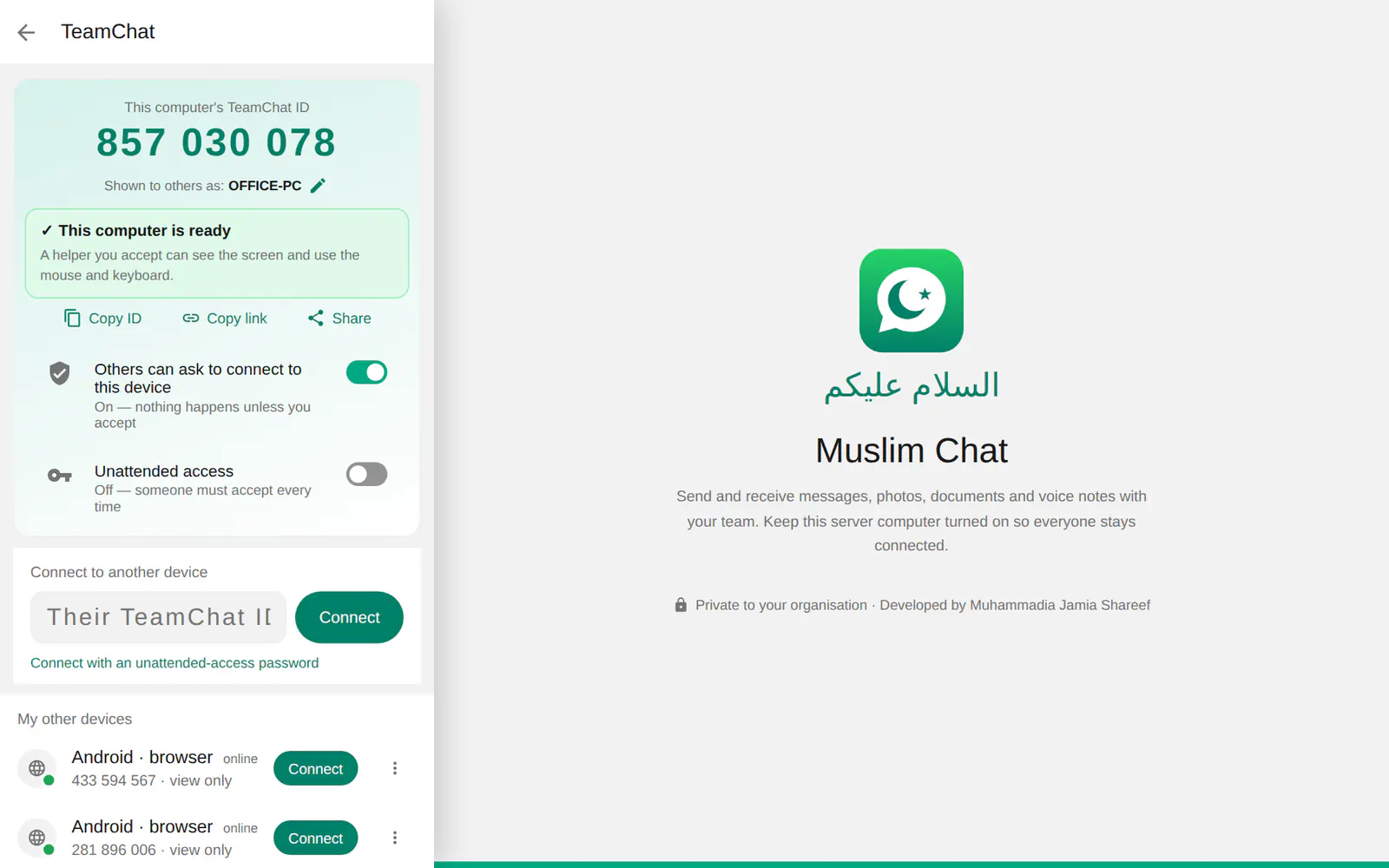
TeamChat at a glance
- A 9-digit TeamChat ID on every computer and phone with Muslim Chat
- Nothing happens until the other person taps Accept and chooses the permissions
- Permissions: see the screen, mouse and keyboard, clipboard, files, sound, drawing, restart or lock
- Help from a computer or from your phone — touch works as the mouse
- Direct between the devices when the network allows, otherwise through the Muslim Chat server
- Unattended access: a password for your own devices, so you can connect with nobody there
- A connect link to share: muslimchat.online/t/123456789
How TeamChat works
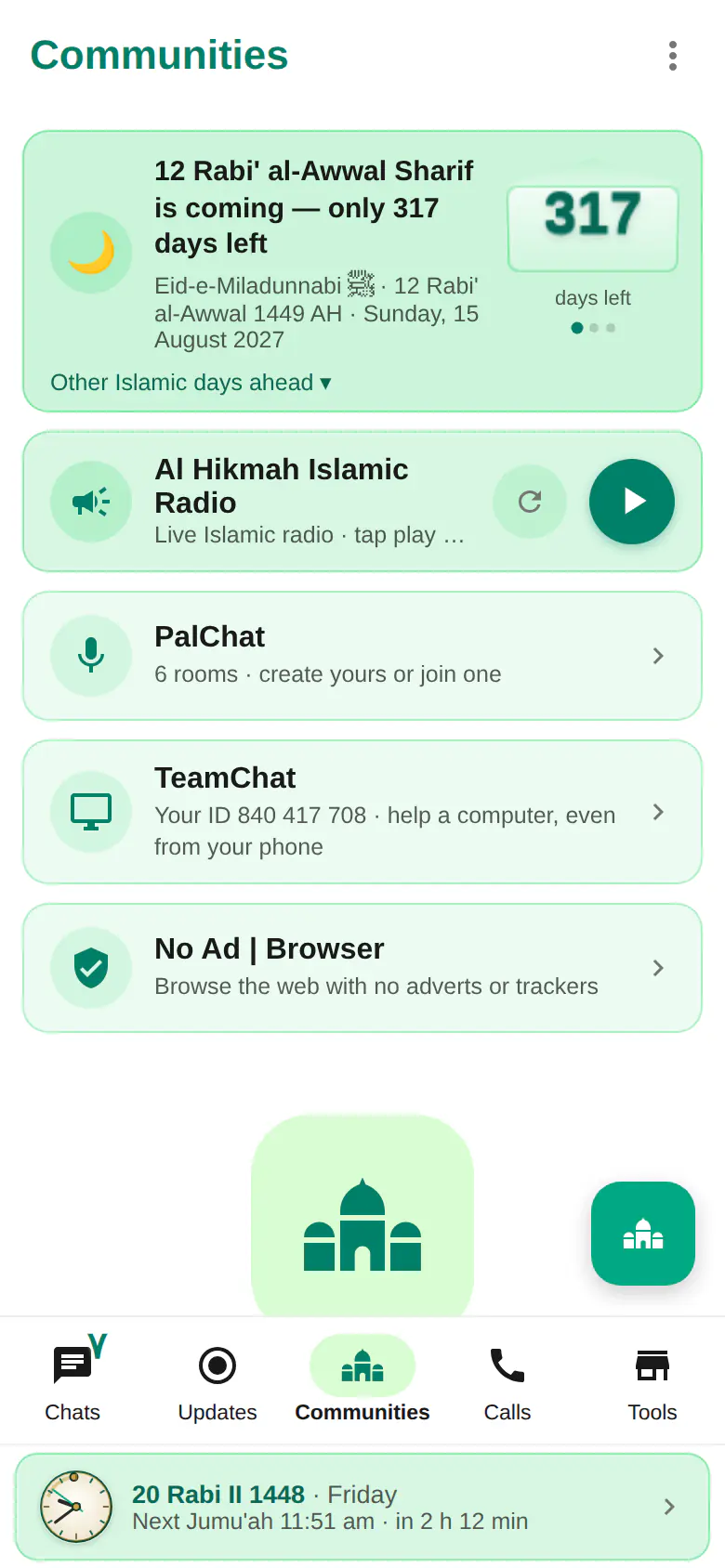
Open Communities → TeamChat. At the top is this device's TeamChat ID — read it to the person helping you, or tap Copy link or Share. To help someone, type their ID and tap Connect.
They see who is asking and choose what you may do: see the screen, use the mouse and keyboard, share the clipboard, send and receive files, hear the device's sound, draw on the screen to point things out, or restart and lock it. While you are connected, a bar stays on their screen showing who is connected, with a Stop button — they can end it at any moment.
Help from a computer or from your phone
You can help someone from Muslim Chat on a computer, from the Android app, or from a web browser — on a phone, your touch works as their mouse. The picture travels directly between the two devices when the network allows (WebRTC) and through the Muslim Chat server when it doesn't, so it works across mobile data, office Wi-Fi and different countries. Choose Best, Balanced or Fast quality for the connection you have, and pick the screen when a computer has more than one.
To be helped with full control, use the Muslim Chat app for Windows. A computer using Muslim Chat in a web browser can share its screen to be seen, but a browser can never let someone else move the mouse or type.
Unattended access for your own devices
Set an unattended-access password on your own office or home computer, and you can connect to it later with the ID and that password, even when nobody is there to accept. Without the password, people still need someone there to accept — so keep the password to yourself.
One link to get help
Every device has a connect link — muslimchat.online/t/ followed by its ID. Send it to the person who helps you: it opens TeamChat ready to connect.
How to use TeamChat
Open TeamChat
Go to Communities → TeamChat in Muslim Chat on the computer that needs help.
Share the ID
Tell the helper your 9-digit TeamChat ID, or send the connect link. They can help from a computer or a phone.
Accept and choose
When the request arrives, tap Accept and tick what the helper may do.
Stop at any time
Tap Stop in the bar on your screen when you are done.
TeamChat in Muslim Chat
টিমচ্যাট — বাংলায় সংক্ষেপে
AnyDesk-এর মতো অন্য কম্পিউটার দেখুন ও নিয়ন্ত্রণ করুন — মুসলিম চ্যাটের ভেতরেই। ৯ সংখ্যার আইডি দিন, অন্যজন অনুমতি দিলে স্ক্রিন দেখা, মাউস-কিবোর্ড, ফাইল ও ক্লিপবোর্ড ব্যবহার করা যায়। ফোন থেকেও সাহায্য করা যায়। যিনি সাহায্য নিচ্ছেন তিনি যেকোনো সময় বন্ধ করতে পারেন।
TeamChat: frequently asked questions
Is TeamChat like AnyDesk or TeamViewer?
Yes. TeamChat lets you see and control another computer with a 9-digit ID, and it is built into Muslim Chat — nothing extra to install.
Is it safe?
Nothing happens until the other person accepts and chooses the permissions. They always see who is connected and can stop at any moment. Unattended access works only with the password the owner set on that computer.
Can I help someone from my phone?
Yes. Open TeamChat in Muslim Chat on your phone, type the ID of their computer, and once they accept you can see the screen and use it with touch.
Does it work in a web browser?
A browser can share its screen to be seen and can view others. To be controlled, use the Muslim Chat app for Windows or Android.
More in Muslim Chat
Get Muslim Chat
A hadiya for all Muslim Ummah — on Android, iPhone, Windows, Mac, Linux and the web, with Premium features for those who want more.